
Creating & Managing Lists
Create new lists, rename them, set reminders, and manage multiple lists
Editing List Names
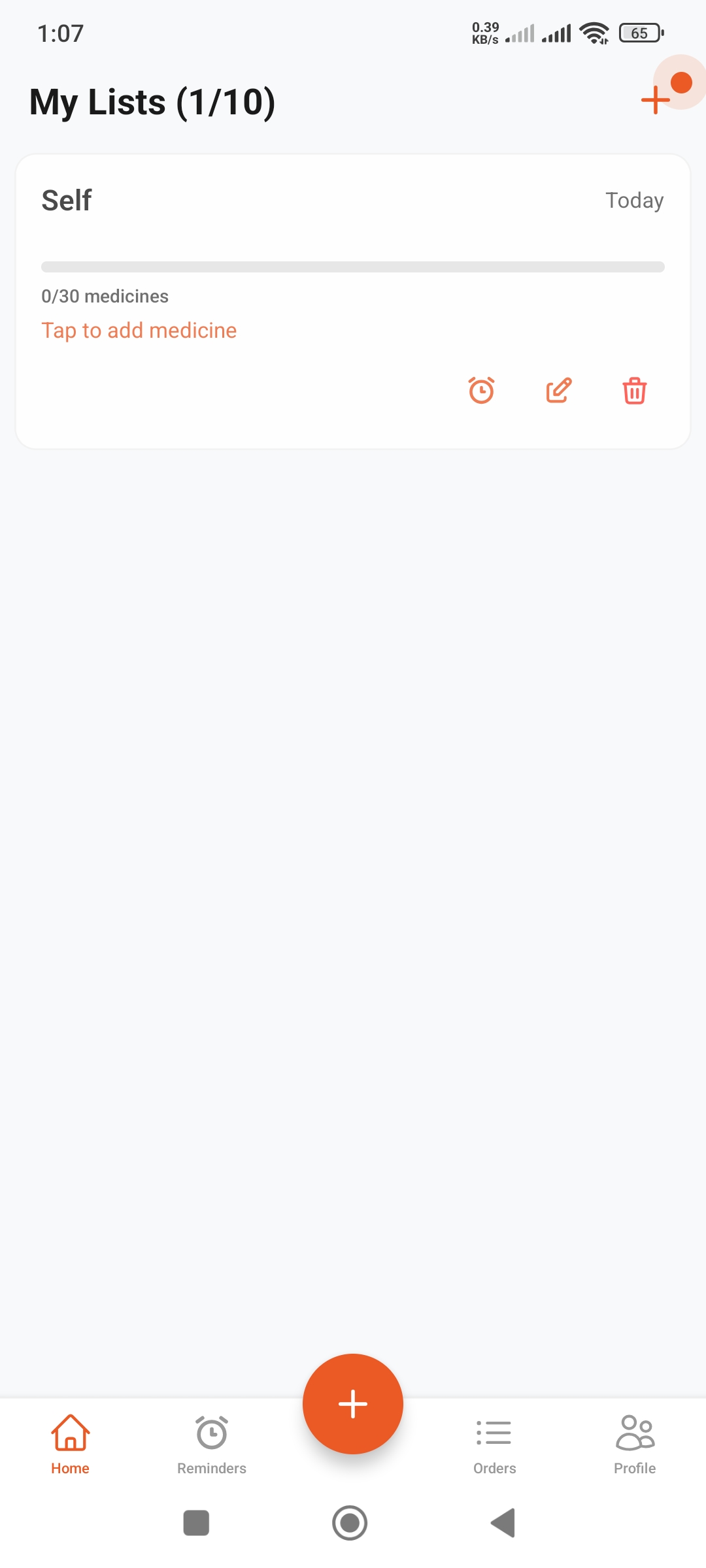
Steps to Rename
- Tap the pencil icon on the list card
- An "Edit Name" dialog will appear
- Enter the new name (max 15 characters)
- Tap the "Confirm" button
Tips
- • Create separate lists for each family member
- • Use clear names for easy identification
- • E.g., "Dad's Medicines", "Mom's Medicines", "Kids' Medicines"
Setting Reminders
Set Reminder
- Tap the alarm icon on the list card
- Select date and time
- Confirm the reminder
Benefits: You'll be notified when it's time to buy medicines
Reminder Benefits
- • Reminds you before medicines run out
- • Builds habit of regular medicine purchasing
- • Keeps track of everyone's medicines
Deleting Lists
Delete a List
- Tap on the list card to enter
- Tap the three-dot menu (⋮) in top right
- Select the "Delete" option
- Confirm deletion
⚠️ Warning
- • Deleting a list removes all medicine information
- • This action cannot be undone
- • Think carefully before confirming
Managing Multiple Lists
Best Practices
- • One list per family member: Individual medicine lists for everyone
- • Lists by condition: Separate lists for diabetes, heart conditions, etc.
- • By duration: Long-term and short-term medicines separate
- • Clear naming: Easy to identify whose list is whose
Quick Navigation
- • Scroll to view all lists
- • Tap card to enter list
- • Use bottom nav to jump to sections