
Invoices & Payments
View invoice history, track payments, and manage billing
Invoice List
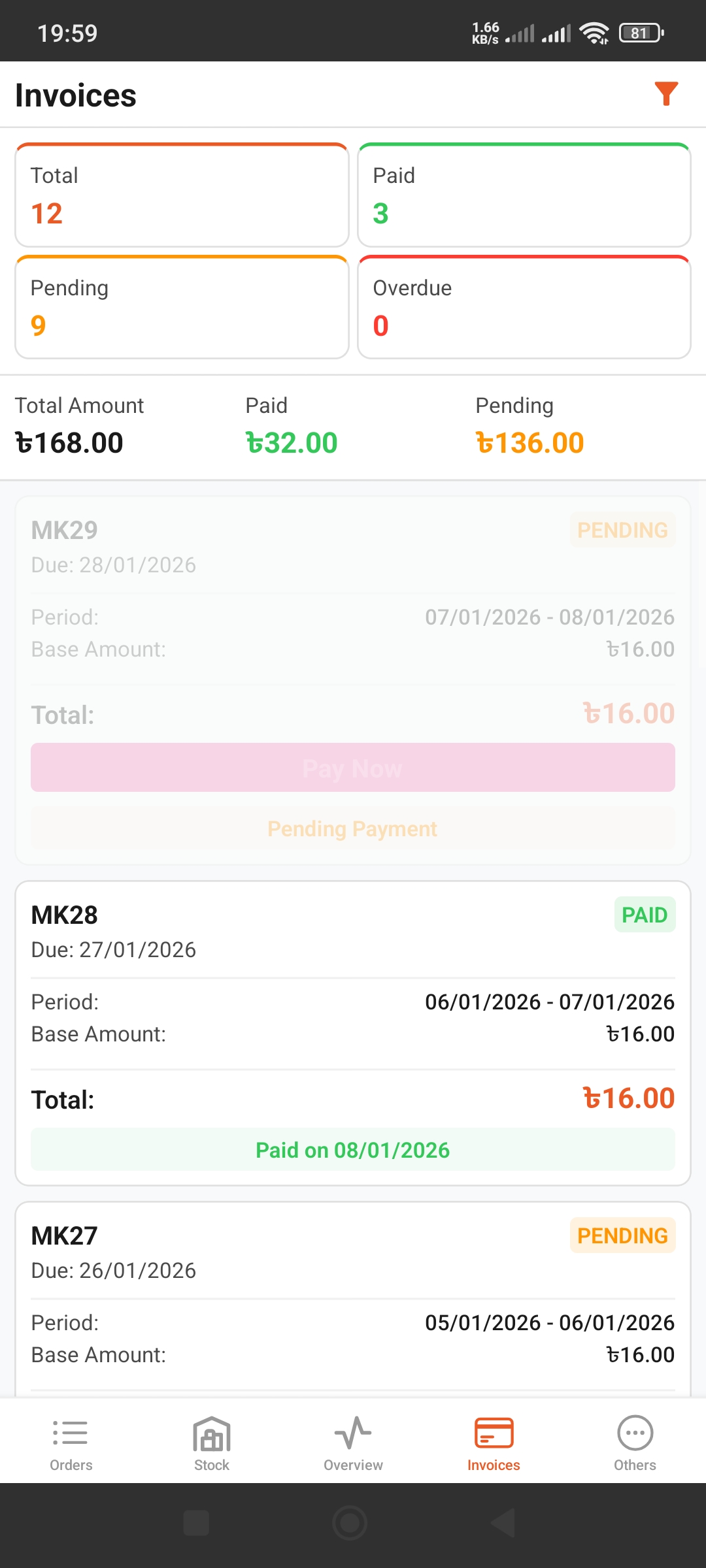
Invoice Summary Cards
Four cards at the top show:
- •Total: Total number of invoices
- •Paid: Paid invoices (green)
- •Pending: Pending invoices (orange)
- •Overdue: Overdue invoices (red)
Financial Summary
- • Total Amount: Total amount of all invoices
- • Paid: Amount paid (green)
- • Pending: Amount pending (orange)
Invoice Details & Payment
Invoice Information
Each invoice contains:
- • Invoice Number: (e.g., MK29)
- • Status: PENDING / PAID / OVERDUE
- • Due Date: Payment due date
- • Period: Billing period
- • Base Amount & Total: Invoice amount
Make Payment
- Tap on a pending invoice from the list
- Review invoice details
- Tap the "Pay Now" (pink) button
- Complete the payment
Invoice Status
- ●PAID: Successfully paid - Shows "Paid on [date]"
- ●PENDING: Awaiting payment - Shows "Pay Now" button
- ●OVERDUE: Past due date - Immediate payment needed
Use Filters
Use the filter icon (funnel) to view only Paid, Pending, or Overdue invoices.